
SuuntoPlus Editor
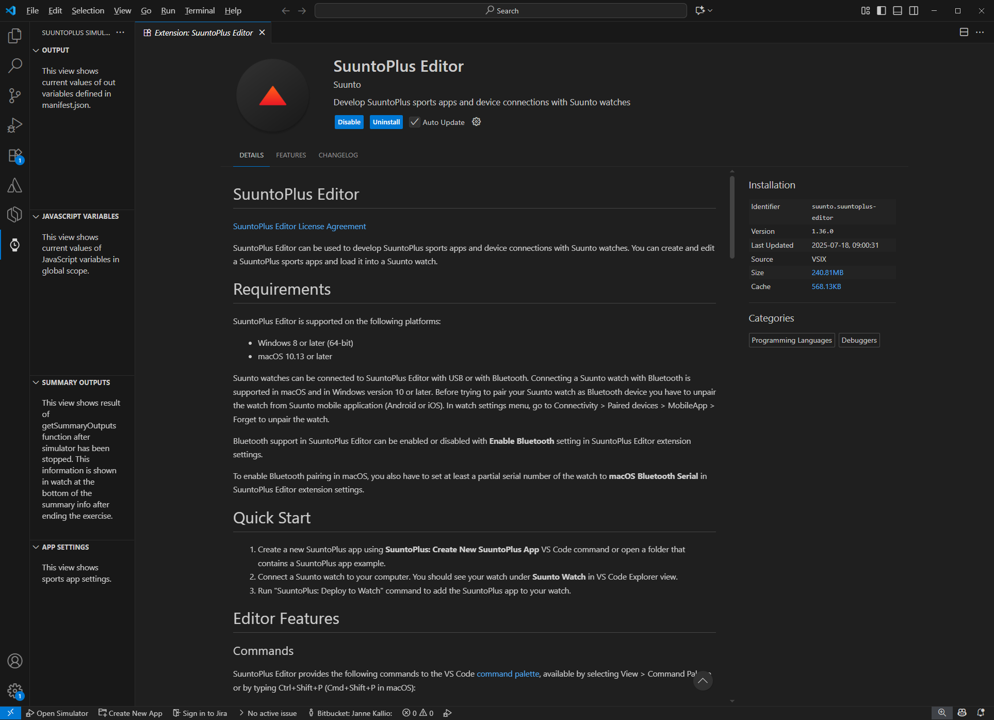
SuuntoPlus Editor can be used to develop SuuntoPlus sports apps and device connections with Suunto watches. You can create and edit a SuuntoPlus sports apps and load it into a Suunto watch.
Requirements
SuuntoPlus Editor is supported on the following platforms:
Windows 8 or later (64-bit)
macOS 10.13 or later
Suunto watches can be connected to SuuntoPlus Editor with USB or with Bluetooth. Connecting a Suunto watch with Bluetooth is supported in macOS and in Windows version 10 or later. Before trying to pair your Suunto watch as Bluetooth device you have to unpair the watch from Suunto mobile application (Android or iOS). In watch settings menu, go to Connectivity > Paired devices > MobileApp > Forget to unpair the watch.
Bluetooth support in SuuntoPlus Editor can be enabled or disabled with Enable Bluetooth setting in SuuntoPlus Editor extension settings.
To enable Bluetooth pairing in macOS, you also have to set at least a partial serial number of the watch to macOS Bluetooth Serial in SuuntoPlus Editor extension settings.
Quick start
Create a new SuuntoPlus app using SuuntoPlus: Create New SuuntoPlus App VS Code command or open a folder that contains a SuuntoPlus app example.
Connect a Suunto watch to your computer. You should see your watch under Suunto Watch in VS Code Explorer view.
Run "SuuntoPlus: Deploy to Watch" command to add the SuuntoPlus app to your watch.
SuuntoPlus Documentation
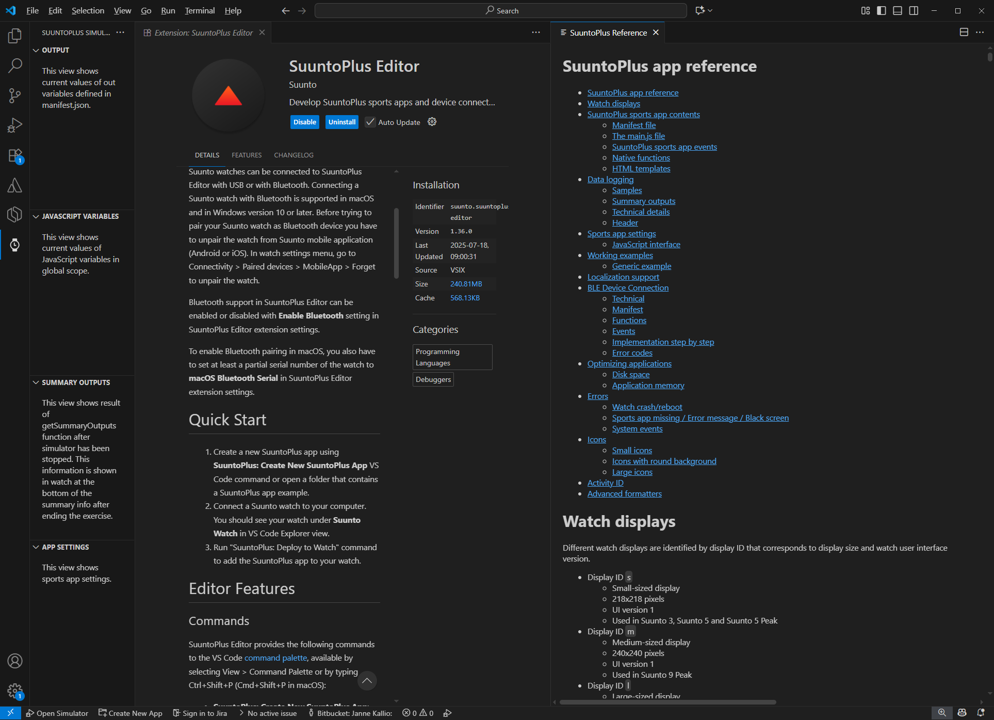
The SuuntoPlus Editor has a reference documentation that illustrates the key information
The contents include
Watch displays - different product display
SuuntoPlus sports app contents - such as HTML templates, native functions
Data logging - data storage with samples, summaries for app analysis
Sports app settings - settings used with suuntoapp
Working examples - Examples for given examples
Localization support -
BLE Device Connection - how to connect with external sensors / device
Optimizing applications - notes related to memory and size
Errors - crashed, system events
Icons - icons
Advanced formatters for data fields
Commands
SuuntoPlus Editor provides the following commands to the VS Code command palette, available by selecting View > Command Palette or by typing Ctrl+Shift+P (Cmd+Shift+P in macOS):
SuuntoPlus: Create New SuuntoPlus App: Creates a new SuuntoPlus app
SuuntoPlus: Open HTML Preview: Opens SuuntoPlus HTML preview
SuuntoPlus: Open HTML Preview to the Side: Opens SuuntoPlus HTML preview
SuuntoPlus: Add SuuntoPlus Binary to Watch: Add SuuntoPlus app binary (.fea, .dev or .wfa file) to a connected Suunto watch
SuuntoPlus: Create Source Package: Create source package for submitting your app to Suunto
Views
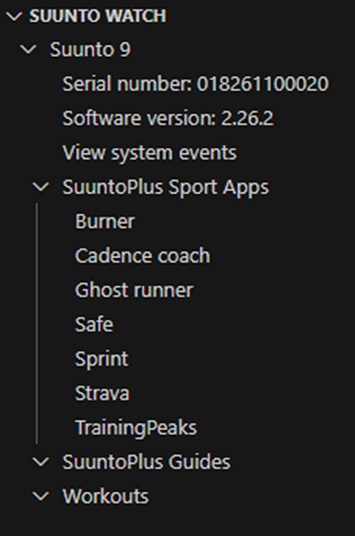
Suunto Watch
Suunto Watch view shows information about a connected Suunto watch. In this view you can:
Delete SuuntoPlus apps from watch
View watch system events
View workouts from watch in JSON format
SuuntoPlus Apps
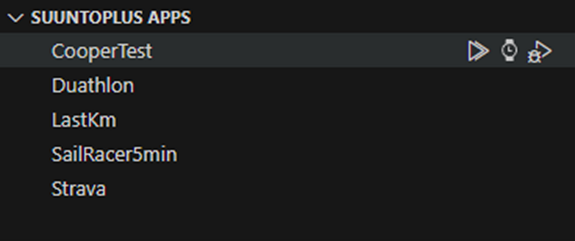
SuuntoPlus Apps view shows a list of SuuntoPlus sports apps in your VS Code workspace. In this view you can:
Build sports app package (.fea or .dev file)
Build sports app and add it to a connected watch
Open sports app in SuuntoPlus simulator
Create source package for submitting your app to Suunto
Settings
The following Visual Studio Code settings are available for the SuuntoPlus Editor extension. These can be configured as User Settings or as Workspace Settings.
SuuntoPlus: Application Language: Language to use for localized SuuntoPlus apps in application build and in SuuntoPlus app simulator
SuuntoPlus: Time Format: Time format (12H or 24H) used in SuuntoPlus app simulator
SuuntoPlus: Unit System: Unit system (metric or imperial) used in SuuntoPlus app simulator
SuuntoPlus: Enable Debug: Enable this setting to get more log messages in SuuntoPlus Editor
SuuntoPlus: Enable Bluetooth: Enable Bluetooth connection to Suunto watches
SuuntoPlus: macOS Bluetooth Serial: Watch serial number for Bluetooth pairing in macOS. With a partial serial number all matching watches will be paired.
SuuntoPlus build
Running Build Sports App or Build and Add Sports App to Watch will create a package (.dev file for apps that connect to an external BLE device and .fea file for other apps) that can be deployed to a Suunto watch. Application build also checks your application and shows warnings or errors if any issues are found.
Application build steps are:
Minify JavaScript file main.js. Comments and white space are removed, and variable names are shortened.
Convert HTML and image files to a format compatible with Suunto watch.
Package all application files to an uncompressed zip file that can be deployed to a Suunto watch.
SuuntoPlus simulator
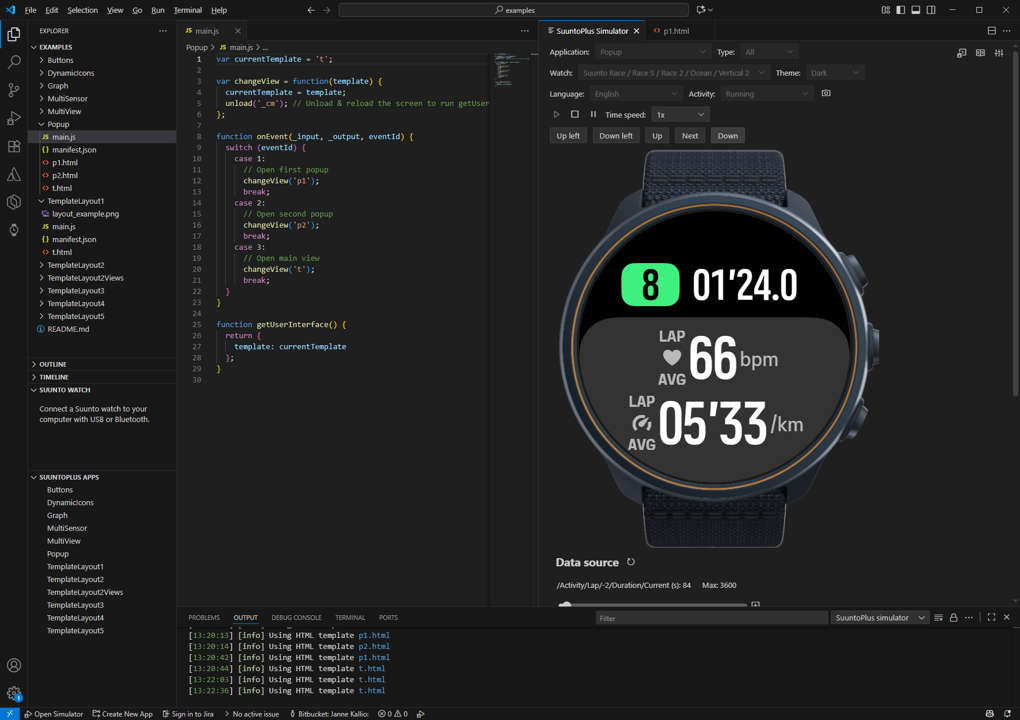
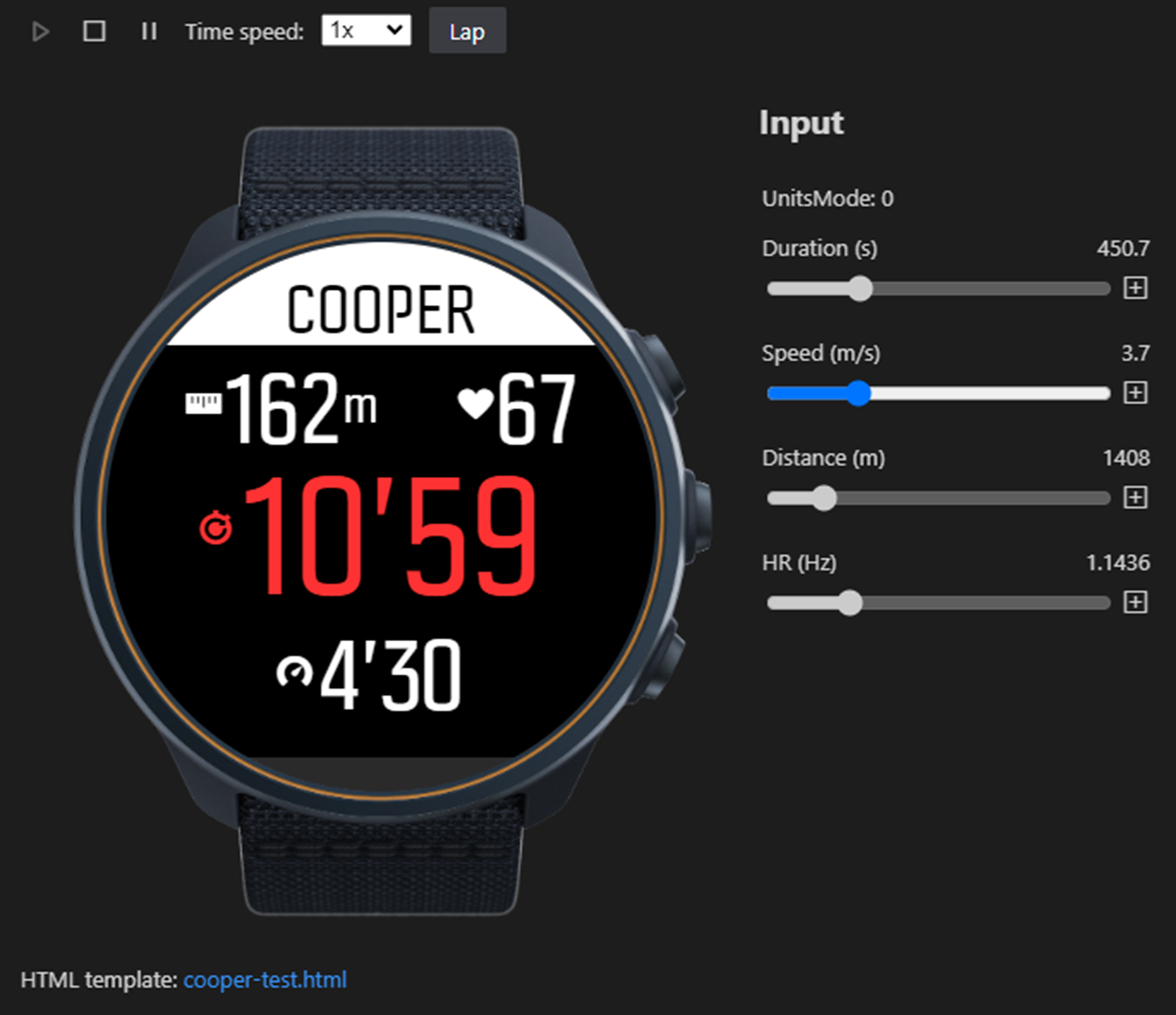
Test your SuuntoPlus sports app in VS Code using the SuuntoPlus simulator. It simulates watch measurement data (i.e. SuuntoPlus sports app input resources), such as GPS, heart rate and altitude data, and can be used to test your application's JavaScript code as well as user interface (HTML and image files).
Suunto watches have different display sizes and also different user interfaces (CSS classes, fonts etc.). You can test your application for different watches by changing Display option in simulator.
Watch resources
Simulator automatically generates values for watch input resources. Alternatively you can adjust the values manually by dragging the sliders in Input data view.
Watch resources can also be simulated using a workout file. Supported workout file formats are Suunto JSON file and FIT file. You can export a FIT file from Suunto mobile app (Android or iOS) or save a Suunto JSON workout file from your watch in SuuntoPlus Editor. The following data from workout file is used for simulating watch resources:
Latitude
Longitude
Heart rate
Distance
Speed
Vertical speed
Cadence
Power
Altitude
Pressure
Sea level pressure
Temperature
Data Views
Simulator data views show input and output data in the simulator.
Input: Shows current values of in input resources in manifest.json.
Output: Shows current values of out variables defined in manifest.json.
JavaScript variables: shows current values of JavaScript variables in global scope in main.js.
Summary outputs: Shows result of getSummaryOutputs function after simulator has been stopped. This information is shown in watch at the bottom of the summary info after ending the exercise.
Sports app settings
Simulator loads sports app settings from data.json settings file and provides JavaScript API functions for reading the settings (see developer documentation for more information). Simulator does not write to data.json, i.e. changing settings permanently is not supported.
HTML preview
SuuntoPlus Editor supports preview of HTML template files. To show the preview, right-click on the editor Tab and select SuuntoPlus: Open HTML Preview, click preview button in editor toolbar or run SuuntoPlus: Open HTML Preview to the Side command using Command Palette. Note that the preview may not always be identical to watch display due to differences in font rendering etc.
SuuntoPlus examples
Run SuuntoPlus: Open Examples command from Command Palette to open the examples in a new VS Code window. Note that the examples are located in SuuntoPlus Editor VS Code extension folder and any changes to them are lost when the extension is updated or u
Other features
Select "Suunto Watch" in VS Code Explorer view to view system events and workout JSON from your watch.
Choose View > Output and then choose SuuntoPlus in the Output panel to see SuuntoPlus editor messages.
Note that you should disable syncing your watch with Suunto mobile app (or unpair your watch from the mobile app) while working with SuuntoPlus Editor. Otherwise Suunto app may remove your SuuntoPlus sports app from the watch.
Note that running SuuntoLink may conflict with SuuntoPlus Editor. You should close SuuntoLink and disable "Start SuuntoLink automatically" in SuuntoLink settings when using SuuntoPlus Editor.